





Fix every missing import in a template at once — components, directives and pipes, whether they come from your own project, from Angular Material, PrimeNG, NG-ZORRO or Taiga UI, or from the private library nobody wrote documentation for.
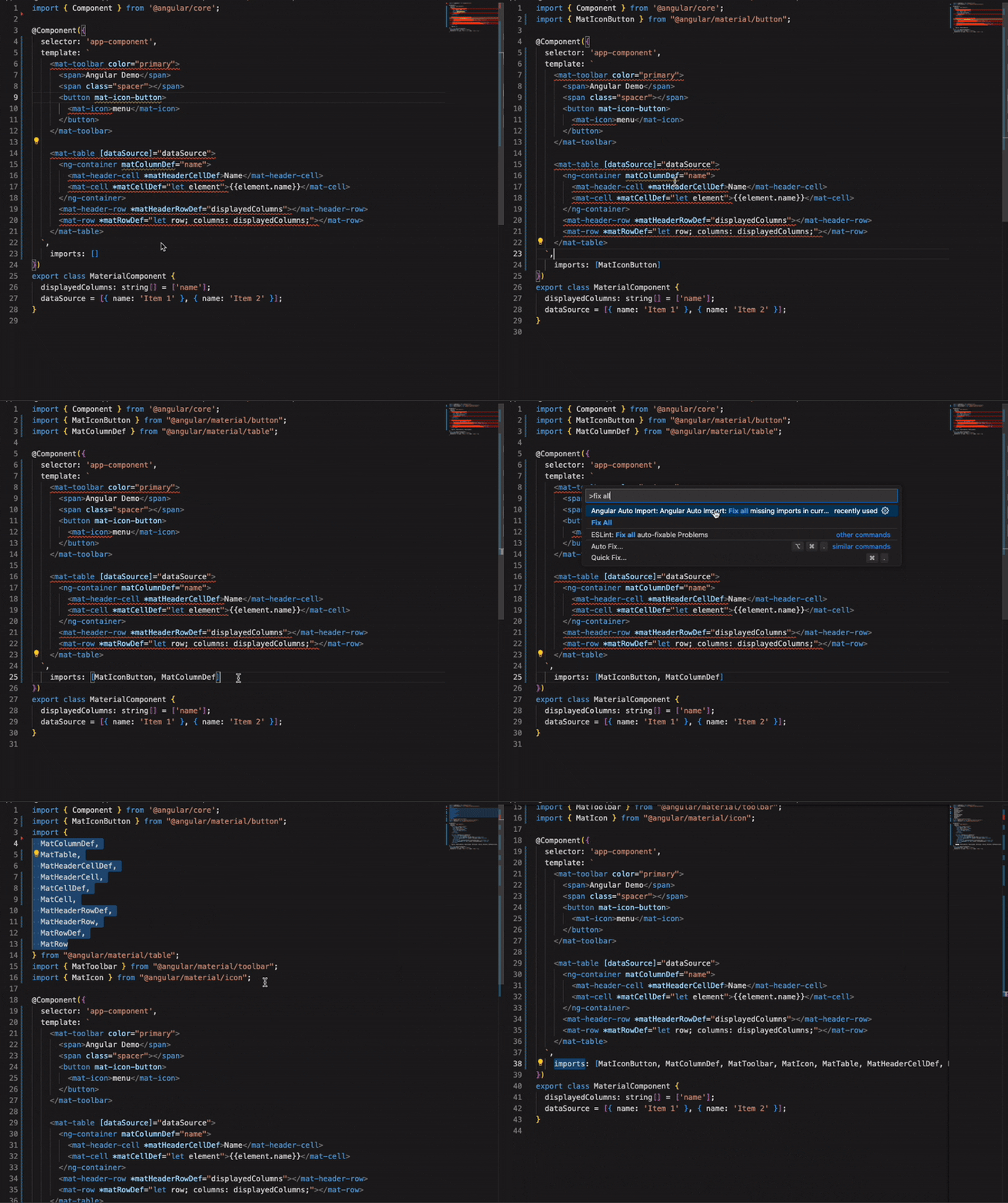
Importing one element at a time is not the problem. Opening a template that needs fifteen of them is. This extension repairs the file in one command — and the whole project in one more, including the templates you never opened.
The same index answers your AI assistant, so it stops inventing components and input names that do not exist in your workspace.
- Fix All in One Command - Every missing component, directive and pipe in the current file, in one edit
- Project-Wide Audit and Repair - Find and fix missing imports across inline and external templates that were never opened in VS Code, as one atomic edit
- Pipes and Attribute Directives Too -
| translate,matTooltip,mat-raised-button: the cases a template hits constantly and tooling usually skips - Any Library, Including Yours - Angular Material, PrimeNG, NG-ZORRO, Taiga UI, any npm package, and your own path-mapped design system
- Answers for Coding Agents - Copilot, Cursor and Claude Code can ask what this workspace really contains: selectors, inputs, outputs, import paths
- Go to Definition - Jump to any unimported element's source, before importing it
- Monorepo Ready - Nx, multi-project and multi-root workspaces
Run Angular Auto Import: Audit Project-Wide Missing Imports from the Command Palette to inspect every template owned by the active Angular project. If no file editor is active, the audit covers every discovered project in the workspace.
Unlike editor diagnostics that are requested only for open documents, the audit reads unopened inline templates and literal external templateUrl files too. It checks them against the component, directive, and pipe selectors indexed from your project, path-mapped libraries, and dependencies. Every finding is clickable and opens the exact template range; the report also states how many projects and templates were scanned and whether the scan completed. A complete non-empty report includes Fix All, which re-audits the same scope, shows the exact import/file counts for confirmation, and submits one transactional workspace edit.
The audit is deliberately a missing-import detector, not a generic HTML validator. An element or attribute is reported only when it matches a known indexed Angular selector whose owner is not imported. Arbitrary unknown attributes and event bindings are outside its scope. Computed templateUrl expressions cannot be discovered; use a string literal. An owner Fix All cannot edit — an ambiguous decorator, or an import name the file already uses for something else — is skipped and counted rather than cancelling the repair of the owners beside it; the result message says how many findings were left. Incomplete scans, changed files, and editors without transactional workspace edits are still rejected outright, without applying anything. Per-file Quick Fix and Fix all missing imports in current file remain available.
The most powerful feature - fix all missing imports in your file with a single command. No more going through each element one by one.
How to use:
- Open the Command Palette (
Ctrl+Shift+P/Cmd+Shift+P) - Run
Angular Auto Import: Fix all missing imports in current file - All missing components, directives, and pipes are automatically imported
Perfect for:
- Cleaning up newly created templates
- Fixing imports after moving components between files
- Bulk importing elements from external libraries
Get intelligent, context-aware import suggestions with improved accuracy and performance.
Key improvements:
- Faster detection - Instant diagnostics for missing imports
- Smarter suggestions - Prioritizes local components over library imports
- Better accuracy - Correctly resolves standalone vs module-based components
- Path alias support - Uses your
tsconfig.jsonpath mappings (@app/*,@shared/*)
How to use:
- Hover over any underlined Angular element
- Click the lightbulb or press
Ctrl+./Cmd+. - Select the appropriate import from the suggestions
Navigate directly to the source of any unimported Angular component, directive, or pipe with a single click. This is especially powerful for external libraries like Angular Material.
Key features:
- Works for external libraries - Click on Material Design components, Angular CDK, and any other npm package to jump to their source
- Accurate navigation - Navigates to the actual component declaration, not just the entry point (e.g.,
button.component.tsinstead ofpublic-api.ts) - Multi-project support - Works seamlessly across monorepos and projects with re-exported components
- No import required - Explore library source without importing first
How to use:
- Hover over any unimported Angular element in your template
Ctrl+Click(orCmd+Clickon Mac) or pressF12- Jump directly to the component's source file
Example:
<!-- No import needed - just Ctrl+Click to see the source -->
<button mat-raised-button>Click Me</button>Coding agents can ask what Angular elements the workspace actually contains, instead of guessing component APIs or import paths from training data. Nothing has to be installed or configured: in VS Code the four answers below are contributed as chat tools, so agent mode picks them up and every question is answered by the language server that already has this workspace indexed. In editors without those tools, the same four are offered as a project-aware MCP server instead. Multi-root workspaces are routed to the project that owns each file either way.
The four answers:
describe_projectreports the Angular version, standalone/NgModule balance, path aliases, and which component libraries the project actually uses.find_elementfinds components, directives, and pipes by purpose or name, ranked by local project usage.describe_elementreturns exact inputs, required bindings, outputs, content slots, host directives, and the import specifier for an element.verify_templatechecks a proposed template and returns both the missing imports and an updated component file.
For Claude Code and other MCP hosts outside the editor, run the same server from npm:
{
  "mcpServers": {
    "angular-auto-import": {
      "command": "npx",
      "args": ["-y", "angular-auto-import-mcp"]
    }
  }
}
Start the command from the Angular workspace root. If the host uses another working
directory, append "--workspace-root", "/absolute/path/to/workspace" to args. Repeat
the option for a multi-root workspace.
- 💡 Smart Completions - IntelliSense for Angular elements as you type in templates
- 📦 External Library Support - Auto-import from any Angular package in node_modules
- 🏢 Monorepo Support - Works seamlessly with Nx and multi-project workspaces
- 🎯 Standalone Component Support - Full support for both standalone and NgModule-based architecture
- 🔧 Configurable Diagnostics - Control severity levels and diagnostic modes
- Install the extension from the VS Code Marketplace
- Open any Angular project (standalone components required)
- Use any component, directive, or pipe in your template
- Let the extension handle the imports automatically
That's it! The extension activates automatically when you open an Angular project.
- Open VS Code
- Press
Ctrl+Shift+X/Cmd+Shift+Xto open Extensions view - Search for
Angular Auto Import - Click Install
Visit the VS Code Marketplace and click Install.
The extension highlights any unimported Angular elements in your templates with a diagnostic indicator (configurable severity - error, warning, or info):
<!-- Diagnostic shown here -->
<button mat-raised-button>Click Me</button>
This diagnostic tells you:
- What's missing - The exact component, directive, or pipe name
- Where it comes from - The module or library providing it
- How to fix it - Quick Fix suggestions or direct navigation
Diagnostic modes:
full(default) - Shows visible diagnostics with quick fix optionsquickfix-only- Shows quick fixes without visible squiggly linesdisabled- Turn off all diagnostics
When you see a diagnostic for an unimported element:
- Hover over the element or place your cursor on it
- Press
Ctrl+./Cmd+.or click the lightbulb icon - Select the import suggestion (e.g.,
Import ButtonComponent from '@angular/material/button')
The extension automatically:
- Adds the import statement to your TypeScript file
- Updates the component's
importsarray (for standalone components)
Explore source code without importing:
- Hover over any unimported Angular element (you'll see the diagnostic)
- Press
F12orCtrl+Click/Cmd+Click - Jump directly to the component's source file
Works perfectly for:
- Material Design components
- Angular CDK utilities
- Third-party Angular libraries
- Your own local components
For files with multiple missing imports:
- Open the Command Palette (
Ctrl+Shift+P/Cmd+Shift+P) - Run
Angular Auto Import: Fix all missing imports in current file - Done - All missing imports are added automatically
Start typing an Angular element in your template:
- Type
<my-comp→ Get component suggestions - Type
[my-dir→ Get directive suggestions - Type
| myPipe→ Get pipe suggestions
Press Enter to insert the element. The extension will automatically add the import if needed.
Customize the extension's behavior in your VS Code settings (File > Preferences > Settings or settings.json):
| Setting | Description | Default |
|---|---|---|
angular-auto-import.projectPath |
Absolute path to Angular project root. Overrides workspace folder detection. Useful for monorepos. | null |
angular-auto-import.importModuleSpecifier |
Import path style: shortest, relative, non-relative, or project-relative. Uses the same preference names as TypeScript/VS Code; choose non-relative for WebStorm-like alias-first imports. |
shortest |
Generated TypeScript imports and the changed @Component imports array follow the
nearest Prettier configuration and supported .editorconfig values. The extension
respects printWidth, tabWidth, useTabs, and singleQuote without formatting the
rest of the file. Those values are read straight from the declarative formats —
.prettierrc, .prettierrc.json, and a prettier key in package.json; a
configuration written as code (prettier.config.js and its siblings) is detected but
never executed, so such a project gets Prettier's own defaults. Projects without a
formatter config keep the previous 120-character, two-space behavior.
| Setting | Description | Default |
|---|---|---|
angular-auto-import.completion.components.enabled |
Enable component auto-completion in templates | true |
angular-auto-import.completion.directives.enabled |
Enable directive auto-completion in templates | true |
angular-auto-import.completion.pipes.enabled |
Enable pipe auto-completion in templates | true |
| Setting | Description | Default |
|---|---|---|
angular-auto-import.diagnostics.mode |
Diagnostic mode: - full: Show diagnostics + quick fixes- quickfix-only: Quick fixes without visible diagnostics- disabled: Turn off all diagnostics |
full |
angular-auto-import.diagnostics.severity |
Severity level for missing imports: error, warning, or info |
warning |
Access these commands from the Command Palette (Ctrl+Shift+P / Cmd+Shift+P):
| Command | Description | When to Use |
|---|---|---|
| Audit Project-Wide Missing Imports | Scans opened and unopened templates and links every finding to its exact source range | Before a commit or release, or after a large refactor |
| Fix all missing imports in current file | Automatically imports all missing Angular elements in the active file | After creating new templates or moving code between files |
| Reindex Project(s) | Manually triggers a full project reindex | When new components aren't being detected |
| Show Logs | Opens the extension's output channel | For debugging or reporting issues |
Problem: Components, directives, or pipes aren't showing in suggestions or quick fixes.
Solutions:
- Run
Angular Auto Import: Reindex Project(s)from the Command Palette - Verify your
tsconfig.jsonincludes all source files - Run
Angular Auto Import: Show Logsto check for parsing errors
- Standalone Components Only: This extension works exclusively with Angular standalone components. Traditional NgModule-based projects are not supported. Report issues on GitHub Issues.
Does this work with NgModule-based projects?
No, Angular Auto-Import requires Angular standalone components (Angular 14+). NgModule-based projects are not supported.
Can I use this with external libraries?
Yes! The extension automatically indexes components, directives, and pipes from any Angular library in your node_modules.
Does it work with Nx monorepos?
Yes, Angular Auto-Import has full support for Nx and other monorepo setups. Each project is indexed separately.
How do I disable diagnostics but keep quick fixes?
Set "angular-auto-import.diagnostics.mode": "quickfix-only" in your settings.
Why are some components not being detected?
Ensure:
- Files are included in your
tsconfig.json - Run
Angular Auto Import: Reindex Project(s)command
Can I navigate to external library source code?
Yes! The "Go to Definition" feature lets you explore any unimported component, directive, or pipe from external libraries (Material Design, Angular CDK, etc.) without importing it first. Just Ctrl+Click on the element in your template to jump to its source file.
- Report Bugs: GitHub Issues
Enjoying Angular Auto-Import? Leave a ⭐ review on the VS Code Marketplace!